How To Convert JPG To PDF On Windows

How to Convert JPG to PDF on Windows
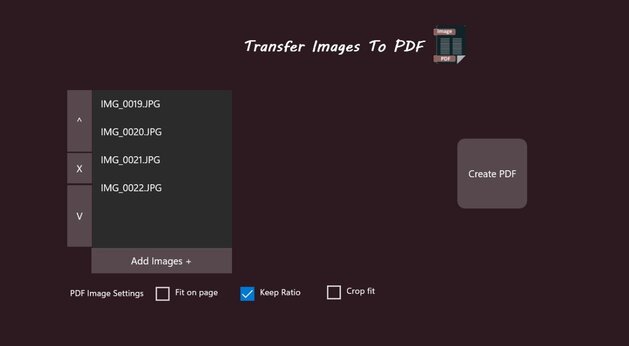
Converting images to PDF is fast and simple on Windows. This task can be accomplished by using a free app on the Windows store called "Transfer Images to PDF."
Launch the Application
Open the "Transfer Images to PDF" application by clicking on the app icon from your Windows desktop or start menu.
Add the JPG Images
- Click the "Add Images" Button: To open the file chooser dialog.
- Select the JPG Images: Navigate to the folder where the JPG images are that you want to convert. You can select multiple images by holding down the "Ctrl" key and clicking on each image.
- Confirm Your Selection: Once you've selected all the images you want to convert, click the "Open" or "OK" button in the dialog. You should now see all the selected images listed in the listbox. Use the UP and DOWN arrows to rearrange the images in the listbox. The order of the listbox represents the pages of the PDF. The first item in the listbox will be page 1, the second item will be page 2, and so on.
Start the Conversion
Click the "Convert" Button and Wait for the Conversion to Complete: The application will now begin converting the selected JPG images into a PDF file. Wait for the conversion to complete.
Access the Converted PDF File
- Once the conversion is complete, a new button labeled "Open Folder" will appear in the application. Clicking this button will open the folder where the converted PDF file is located.
- You can now view the PDF file using your preferred PDF reader.
Conclusion
The "Transfer Images to PDF" application offers a fast and easy way to create a PDF file from multiple image formats, including JPG images. By following these instructions, users can easily convert their favorite pictures into a single PDF document. Whether for personal use, sharing with friends and family, or professional purposes, this tool streamlines the process. Enjoy your newly created PDF!